
Slack Bot
The Slack bot uses Socket Mode — a persistent WebSocket connection from the agent server to Slack. No public URL or ngrok required. The bot replies when @mentioned in any channel it's a member of, and to direct messages.
Use cases
- Personal assistant — DM the bot to query your data, run tasks, get summaries
- Per-channel helper — invite the bot to
#ideasand @mention it for notes or project questions - Automation entrypoint — wire
slack.mention_received/slack.dm_receivedas triggers - Scoped public helper — use Bot Mode Defaults for limited answers while reserving full agent power for authorized users
One-time Slack app setup
Follow the full app creation flow at Slack integration setup first (create the app, add bot scopes, install to the Slack workspace you authorize, copy the xoxb- bot token). Then add the conversational-bot pieces below.
1. In api.slack.com/apps → your app → Socket Mode in the left sidebar.
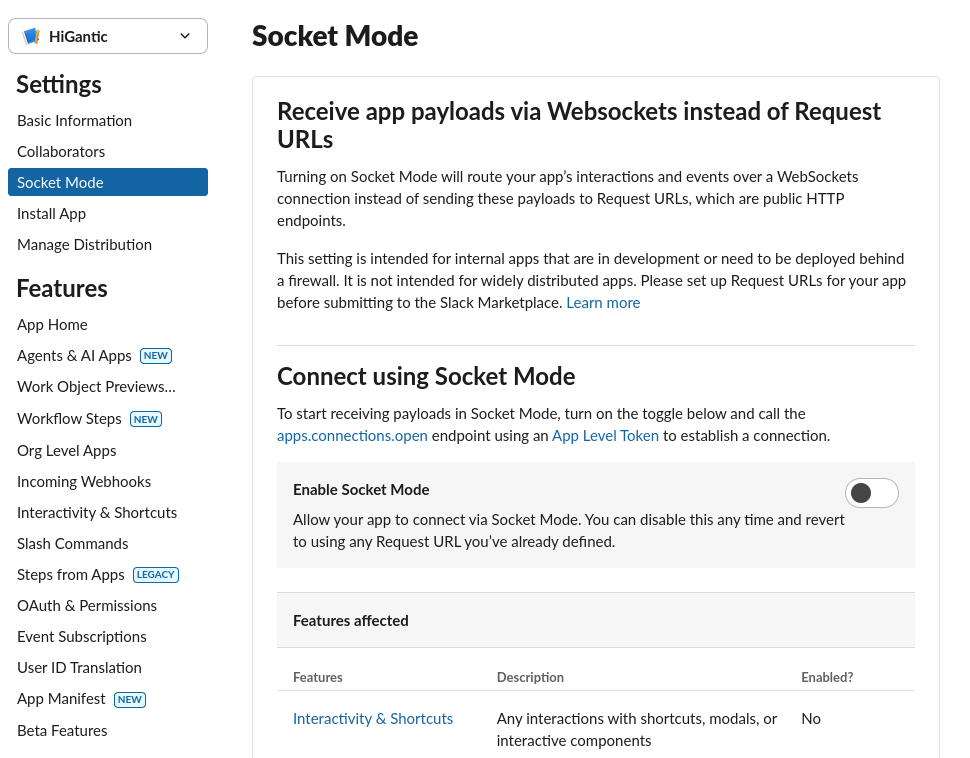
Toggling it on prompts you to generate an App-Level Token. Give it a name (e.g. "Higantic"), confirm the connections:write scope is listed, and click Generate.
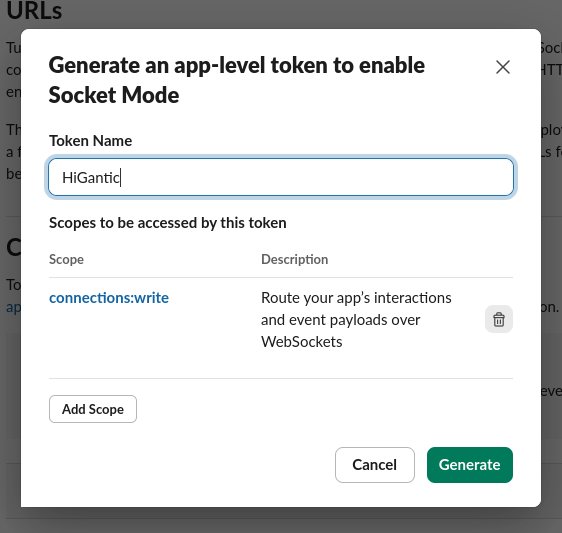
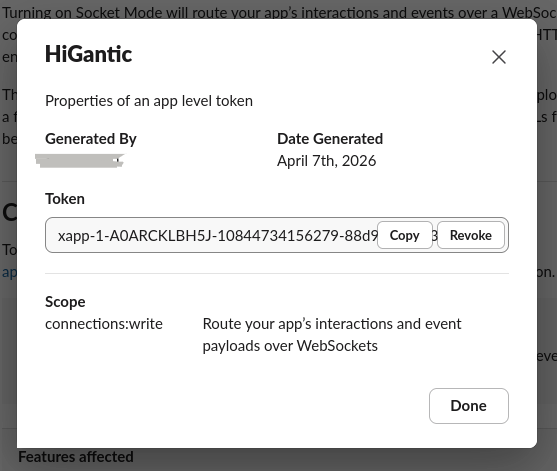
connections:write scope is required.Copy the resulting App-Level Token — it starts with xapp-. Save it for step 6 below; you'll only see it once.
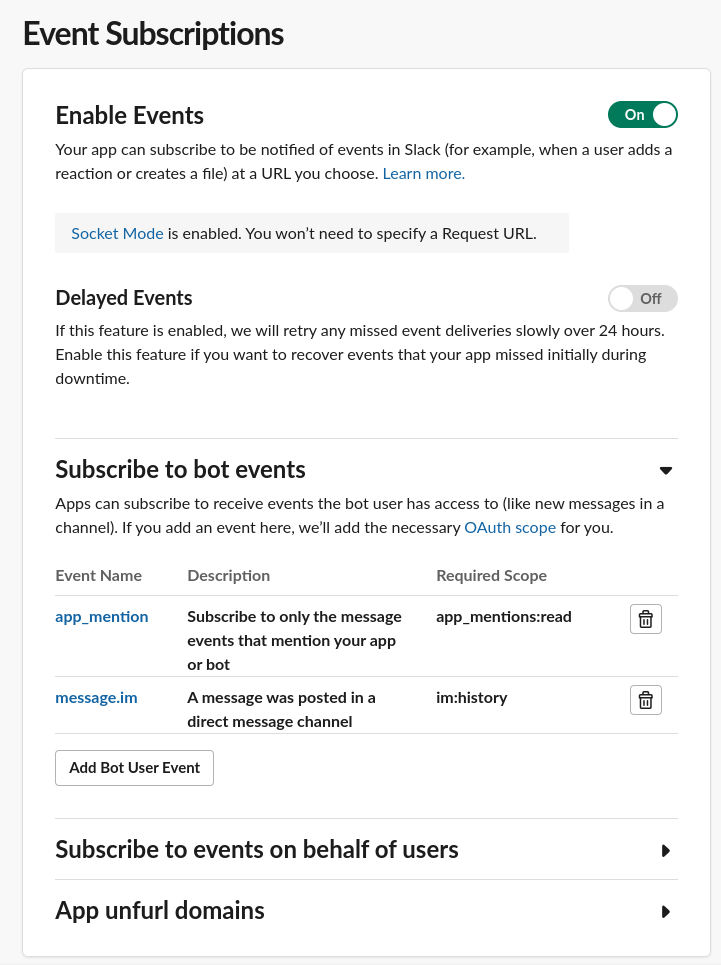
2. Event Subscriptions in the left sidebar → toggle Enable Events on. Because Socket Mode is on, Slack skips the Request URL field. Expand Subscribe to bot events and add both app_mention and message.im — Slack auto-adds the matching scopes (app_mentions:read, im:history).
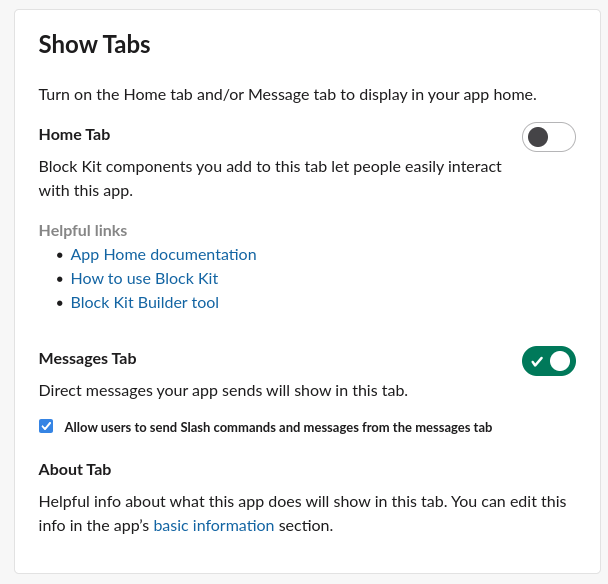
3. App Home in the left sidebar → scroll to Show Tabs → toggle Messages Tab on, then check "Allow users to send Slash commands and messages from the messages tab". Without this checkbox, Slack shows "Sending messages to this app has been turned off" when anyone tries to DM the bot.
4. OAuth & Permissions → add these bot scopes (in addition to the ones from Slack integration setup):
app_mentions:read   — receive @mention events
im:history          — read DMs the bot receives
im:read             — list DM channels
5. Reinstall the app to the Slack workspace — this step is required and easy to miss. After adding the new scopes and event subscriptions, Slack will not deliver any events until you reinstall. Go to OAuth & Permissions → click Reinstall to [YourWorkspace] → approve.
[slack-gateway] connected) but never replies to mentions or DMs, you almost certainly skipped the reinstall. Slack silently drops events for new scopes until the app is reinstalled.Configure in Higantic
6. In Credentials, click Edit on your existing Slack credential and paste the xapp- token into the new App-Level Token (Socket Mode) field. Save.
7. Open the agent's Settings page → enable the slack tool set if it isn't already.
8. Scroll to Slack Bot (Two-Way Chat) → toggle Enable Slack Bot.
9. (Optional) Fill in:
- Bot Mode Defaults — shared public prompt/model used by Slack and Discord for unauthorized users.
- Platform Prompt Override — optional Slack-specific prompt. Leave blank to use Bot Mode Defaults.
- Bot Model — optional Slack-specific model override for unauthorized users.
- Authorized Slack User IDs — Slack user IDs (e.g.
U0AR2KKC2Q3) that get full agent access. Find IDs by opening a profile → "Copy member ID", or callslack_list_users.
10. Save. Restart your agent server (cd packages/agent && bun run dev) so the Socket Mode connection opens. Look for [slack-gateway] connected as U… in the logs.
How authorization works
On every inbound message, the gateway checks the sender's Slack user ID against the authorized list. Match → "agent" mode (full system prompt + every enabled tool). No match → "bot" mode (uses the Slack override, otherwise Bot Mode Defaults, otherwise a safe public-chat default; no tools are available). User IDs are stable — they don't change when someone renames themselves.
Events emitted
| Event | When |
|---|---|
| slack.mention_received | Bot was @mentioned in a channel |
| slack.dm_received | Bot received a direct message |
| slack.message_sent | Bot posted a reply |
Troubleshooting
- "Sending messages to this app has been turned off" when DMing — re-check step 3 (App Home → Messages Tab + the checkbox).
- Bot connects but never replies — you forgot to reinstall the app after adding scopes/events. Go to OAuth & Permissions → Reinstall to [YourWorkspace] in Slack. This is the #1 cause.
- Bot doesn't respond to channel mentions — invite it to the channel:
/invite @YourBotName. - Gateway never connects — verify the credential has both
botTokenandappTokenset, and Socket Mode is enabled in your Slack app. - Unauthorized users get full access — make sure you're using user IDs, not display names, in the authorized list.