
Slack
Connect your personal agent to Slack to send messages, read channels you authorize, search conversations, add reactions, and manage channel topics. Slack uses the term "workspace" for setup; Higantic is not currently positioned as an organization-management product.
Setup
1. Create a Slack app at api.slack.com/apps — click Create an App → From scratch.
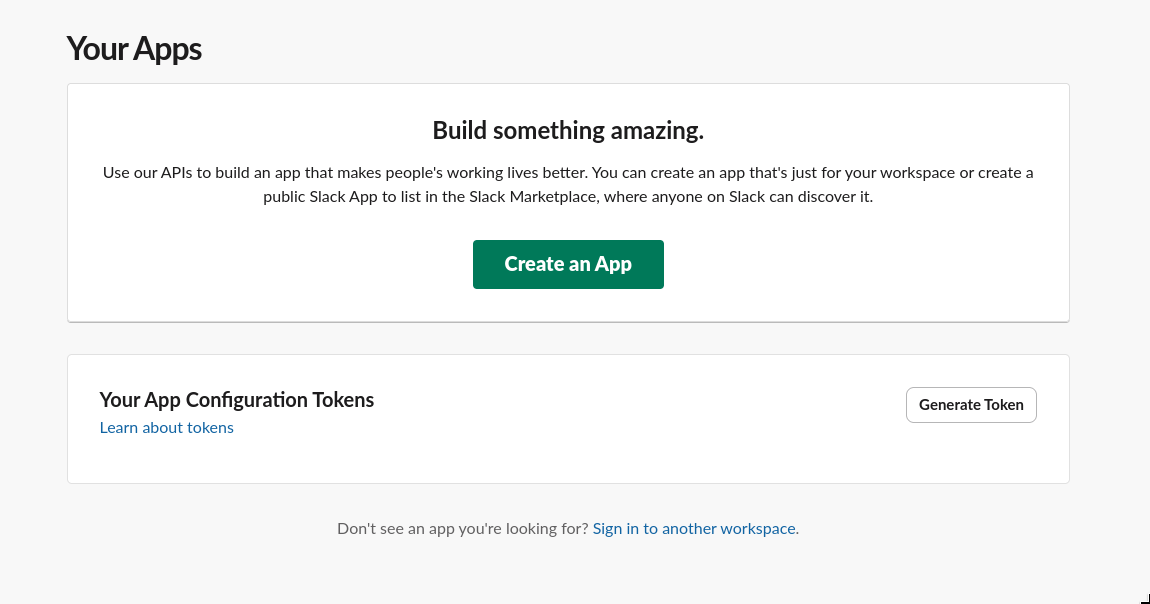
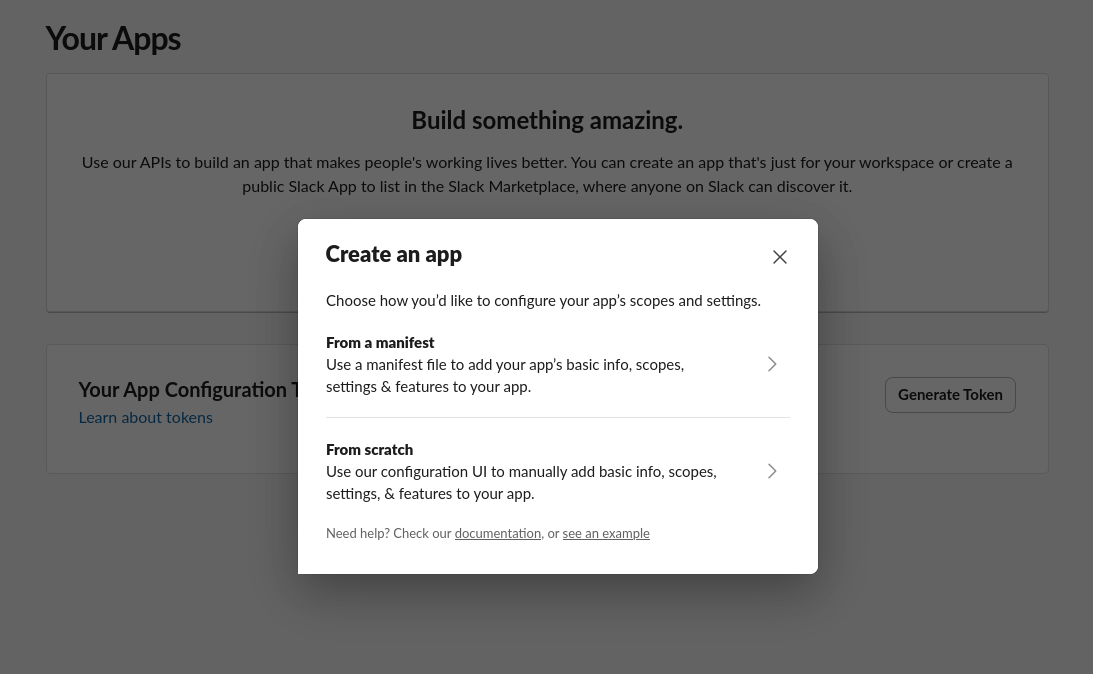
2. In the dialog that appears, choose From scratch, then enter an app name (e.g. "Higantic") and pick the workspace where the bot will live. Click Create App.
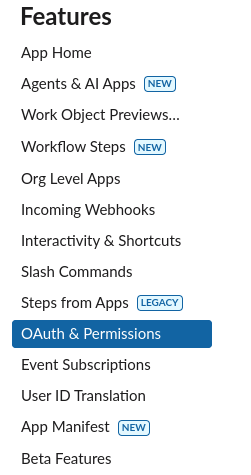
3. In the left sidebar, click OAuth & Permissions.
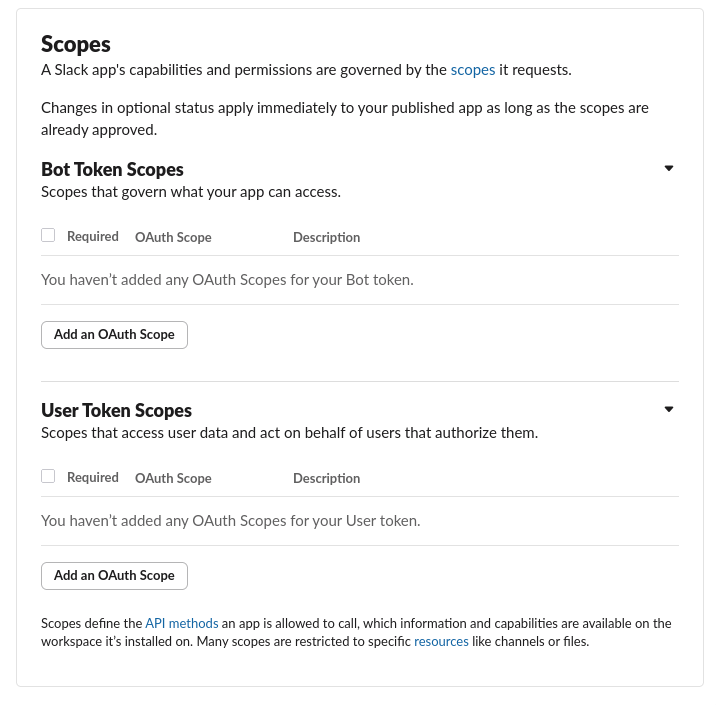
4. Scroll to Scopes → Bot Token Scopes and click Add an OAuth Scope for each scope below. Ignore User Token Scopes unless you need slack_search_messages.
chat:write        — Send messages and DMs
channels:read     — List public channels
channels:history  — Read public channel messages
groups:read       — List private channels
groups:history    — Read private channel messages
reactions:write   — Add emoji reactions
search:read.public   — Search public channel messages
search:read.private  — Search private channels the bot is in
search:read.im       — Search direct messages (optional)
search:read.mpim     — Search group DMs (optional)
search:read.files    — Search files (slack_search_files)
search:read.users    — Search Slack workspace users (slack_search_users)
users:read        — List Slack workspace users (slack_list_users)
users:read.email  — Include user emails (optional)
im:write          — Open DMs for slack_send_dm
files:write       — Upload files via slack_upload_file
pins:write        — Pin / unpin messages
channels:manage   — Create channels, invite users (public)
groups:write      — Create / invite for private channels
channels:join     — slack_join_channel
Note: Slack split the legacy search:read into granular scopes. Pick the ones matching the surfaces you want searchable (public/private channels, DMs, files). If your workspace only exposes search scopes under User Token Scopes, you'll need to install with a user token (xoxp-) for the search tools to work.
5. Scroll up to the OAuth Tokens section and click the green Install to [YourWorkspace] button (Slack labels it with your workspace name, e.g. "Install to Aneaire"). Approve the prompt. After install, the page will show a Bot User OAuth Token starting with xoxb- — copy it.
6. In your agent's Settings, enable Slack and paste the token.
7. Invite the bot to channels it should access: type /invite @YourBotName in each channel.
Tools
| Tool | Description |
|---|---|
| slack_send_message | Send a message to a channel or thread |
| slack_list_channels | List available channels with IDs and topics |
| slack_read_messages | Read recent messages from a channel or thread |
| slack_add_reaction | Add an emoji reaction to a message |
| slack_set_topic | Set a channel's topic |
| slack_search_messages | Search messages across channels |
| slack_search_files | Search uploaded files in the connected Slack workspace |
| slack_search_users | Search Slack workspace users by name (faster than list_users) |
| slack_list_users | List Slack workspace users (resolve names → user IDs) |
| slack_send_dm | Send a direct message to a user by user ID |
| slack_upload_file | Upload a text file or snippet to a channel |
| slack_update_message | Edit a message previously posted by the bot |
| slack_delete_message | Delete a message previously posted by the bot |
| slack_schedule_message | Schedule a message for a future Unix timestamp |
| slack_get_permalink | Get a shareable permalink URL for a message |
| slack_lookup_user_by_email | Look up a user by email address |
| slack_pin_message | Pin a message in a channel |
| slack_unpin_message | Unpin a message from a channel |
| slack_create_channel | Create a new public or private channel |
| slack_join_channel | Bot joins a public channel |
| slack_invite_to_channel | Invite users to a channel by ID |
Sending Messages
Messages support Slack's mrkdwn formatting:
*bold*  _italic_  ~strikethrough~  `code`
> blockquote
• bullet list (use bullet character)
<https://example.com|Link Text>
:emoji_name:
To reply in a thread, pass the thread_ts parameter (the timestamp of the parent message).
Events
Slack actions emit events to execution history for monitoring. These events are not public automation triggers:
| Event | When |
|---|---|
| slack.message_sent | A message is posted to Slack |
| slack.topic_set | A channel topic is updated |
| slack.dm_sent | A direct message is sent to a user |
| slack.file_uploaded | A file is uploaded to a channel |
| slack.message_updated | Bot edited a message |
| slack.message_deleted | Bot deleted a message |
| slack.message_scheduled | A message was scheduled for future delivery |
| slack.message_pinned | A message was pinned |
| slack.message_unpinned | A message was unpinned |
| slack.channel_created | A new channel was created |
| slack.channel_joined | Bot joined a channel |
| slack.users_invited | Users were invited to a channel |
| slack.mention_received | Bot was @mentioned in a channel (Socket Mode bot) |
| slack.dm_received | Bot received a direct message (Socket Mode bot) |
Example
User: "Post a summary of today's completed tasks to #journal"
Agent: Lists channels to find #journal, reads the task board, composes a summary, and posts it.
Conversational Bot (Socket Mode)
In addition to the outbound tools above, you can run the agent as a two-way conversational bot that replies when @mentioned in a channel or sent a DM. This uses Slack Socket Mode — a persistent WebSocket, no public URL required.
One-time Slack app setup
1. In api.slack.com/apps → your app → Socket Mode → toggle Enable Socket Mode on. Generate a token (e.g. "agent-maker") with the connections:write scope. Copy the App-Level Token (starts with xapp-).
2. Event Subscriptions → toggle on → under Subscribe to bot events add app_mention and message.im.
3. App Home → Show Tabs → enable Messages Tab and check "Allow users to send Slash commands and messages from the messages tab". Without this, DMs to the bot are blocked.
4. Add these additional bot scopes under OAuth & Permissions:
app_mentions:read  — receive @mention events
im:history         — read DMs the bot receives
im:read            — list DM channels
5. Reinstall the app to the Slack workspace when Slack prompts.
Configure in Higantic
1. Open the Slack credential and paste the new xapp-… token into the App-Level Token (Socket Mode) field.
2. Open the agent's Settings page → enable Slack Bot (Two-Way Chat).
3. Configure Bot Mode Defaults for the shared public prompt/model, then optionally set a Slack-specific platform override and Authorized Slack User IDs (trusted users who get full agent access — everyone else falls back to restricted bot mode).
4. Save. The agent server picks up the change on its next sync (within 60s).
How it works
Inbound messages arrive on the persistent Socket Mode WebSocket and are routed to a Convex conversation that's persistent per (agent, channel). Threaded back-and-forth keeps context across mentions. Each inbound message emits slack.mention_received or slack.dm_received to the event bus so you can wire automations off them. Replies are posted via chat.postMessage; if the inbound was in a thread, the reply is posted in the same thread.
Integration Ideas
Combine with Automations for event-driven Slack notifications (e.g., "when a task is completed → post to #done"). Use with Scheduled Actions for daily standups or weekly reports posted to Slack.